An integration guide for the customer's IT team. Swopi supports Single Sign-On (SSO) using the OpenID Connect (OIDC) standard, a modern protocol built on top of OAuth 2.0. The identity provider remains fully under the customer's control (Microsoft Entra ID, formerly known as Azure Active Directory), and user roles are assigned via App Roles (recommended) or group membership in Entra ID.
This guide is generic and applies to every Swopi enterprise customer. What the customer provides and what Swopi configures is explicitly indicated at each step.
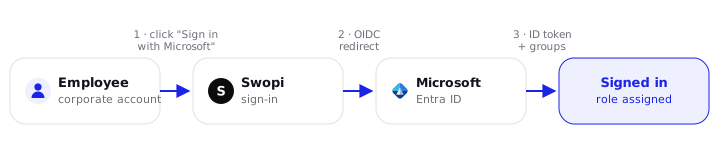
#Integration overview
| Protocol | OpenID Connect (OAuth 2.0, authorization code flow) |
| Identity provider | Microsoft Entra ID (customer tenant) |
| Issuer | https://login.microsoftonline.com/{tenant}/v2.0 |
| OIDC discovery | https://login.microsoftonline.com/{tenant}/v2.0/.well-known/openid-configuration |
| Scopes | openid, email, profile (+ roles or groups claim), no Graph scopes |
| Authorization | App Roles (recommended) or Entra security groups → roles in Swopi |
| Sign-in identifier | Corporate email or UPN, the UPN may differ from the email |
| Token verification | Server-side: signature via the tenant's JWKS, validation of both issuer and audience |
| Credential storage | Client Secret stored exclusively in the server-side configuration of the identity platform, never in code or a repository |
| Platforms | Web dashboard (https://dash.swopi.co) and mobile app (iOS / Android), one identity |
By default, Swopi does not have a dedicated sign-in URL for individual
customers. Everyone signs in at the shared address https://dash.swopi.co
(or in the mobile app), and the system routes them to your tenant automatically
based on the domain of the email/UPN they enter. We can arrange a vanity URL
separately, but it is not required for SSO.
#Prerequisites
Before you begin, make sure you have:
- permission to create an App Registration in your Entra ID (the Application Administrator or Global Administrator role),
- an active Swopi Teams plan with SSO enabled (our team will arrange this),
- either prepared App Roles on the app registration (recommended), or a list of employees divided into security groups according to the desired roles in Swopi.
#Deployment procedure
#Step 1: App Registration (provided by the customer)
In the Azure Portal → Microsoft Entra ID → App registrations → New registration:
-
Enter a name (e.g.
Swopi SSO) and confirm. -
Authentication → Add a platform → Web → as the Redirect URI, enter the Firebase OIDC handler:
https://swopi-prod.firebaseapp.com/__/auth/handler📸 Screenshot: configuring the redirect URI in the App Registration.
images/entra-redirect-uri.png -
Certificates & secrets → New client secret → create a secret and copy the value immediately (Azure will not show it again later).
-
Choose one authorization method (we strongly recommend App Roles):
A) App Roles (recommended). In App roles, create roles with these values:
Swopi.AdminandSwopi.Userare required,Swopi.ManagerandSwopi.Supportoptional:Swopi.AdminSwopi.UserSwopi.ManagerSwopi.SupportYou assign users/groups to them in Enterprise applications → Users and groups. Entra sends them in the
rolesclaim.B) Security groups (alternative). Token configuration → Add groups claim → Security groups → include them in the ID token. Swopi then maps the Object ID (GUID) of the groups to roles.
📸 Screenshot: App Roles / groups claim in the App Registration.
images/entra-app-roles.png
Why we recommend App Roles. When an identity belongs to a large number of groups, Entra omits the
groupsclaim (the so-called "groups overage", roughly above 200 groups in the JWT) and replaces it with a reference to Graph. App Roles are bound only to this application, so therolesclaim never overflows. This is the approach used by mature SaaS integrations, and we recommend it for tenants with large or complex group membership (see Role mapping).
#Step 2: Handing over the details to Swopi (provided by the customer)
Send us the following over a secure channel:
- Directory (tenant) ID, issuer and JWKS,
- Application (client) ID, the ID token audience,
- Client Secret, the value from step 1.3,
- either the App Role values (e.g.
Swopi.Admin,Swopi.User), or the Object ID (GUID) of the groups for the roles, - the email/UPN domain (or domains) under which users sign in (if the UPN domain differs from the mail domain, provide both).
#Step 3: Activation (configured by Swopi)
Our team sets up an OIDC provider in the Firebase Identity Platform connected to your tenant and configures the domain routing (typically within 2 business days of receiving the details).
After activation:
- Users sign in by choosing "Continue via SSO" and entering their corporate email/UPN: Swopi recognizes SSO from the domain and redirects to the Microsoft sign-in.
- Roles are evaluated on every sign-in based on the current App Role / group membership, a change in Entra takes effect on the next login.
- A newly signed-in user is automatically assigned to your organization and (for roles with a business card) a digital business card is created on first sign-in, pre-filled with the name and email from Entra ID (including a QR code and wallet passes).
images/swopi-sso-login.png
From the verified Entra token, Swopi reads the authorization claim and sets the role accordingly:
| Token claim | What Swopi reads | Result |
|---|---|---|
roles (App Roles, recommended) |
App Role values (Swopi.Admin…) |
role per the mapping |
groups (alternative) |
the Object ID (GUID) of the groups | role per the mapping |
If both claims arrive, App Roles take precedence. Swopi works exclusively with the group's Object ID (never the name) and with the value of the App Role, so your naming convention and management via Access Packages remain independent of the implementation in Swopi. Details are in the Role mapping guide.
#UPN ≠ email address
Swopi does not assume that UPN = email.
- Routing: users can sign in with either an email or a UPN; we identify the tenant by the domain. If the UPN domain differs from the mail domain, we register both, so both work.
- Identity binding: after sign-in, Swopi binds the Entra token to the
account via the federated subject (OIDC
sub/oid), not by matching the email to the UPN. This is resistant to spoofing and independent of the UPN.
You just need to tell us at onboarding which domain(s) your people use to sign in.
#Enforced SSO and access governance
- Enforced SSO (dashboard → Team settings → Security): members may sign in exclusively via Entra ID. The admin always has an exception (email + password), a safeguard against lockout in case SSO temporarily stops working. Enforcement is checked server-side when the sign-in session is created.
- Strict access enforcement (governance): you can optionally enable that a user without a mapped App Role / group has no access at all (no silent fallback to the Member role). Access is then decided exclusively by the assignment in Entra, ideally via Identity Governance Access Packages (auditable). We recommend this.
images/swopi-enforce-sso.png
- On every sign-in, the ID token from Entra is cryptographically verified on the server, signature via the tenant's JWKS, validation of both issuer and audience. Data from the client is not trusted.
- Swopi requires no permissions to read tenant data (no Graph scopes for SSO itself).
- The Entra token is bound to the account via the federated subject (independent of UPN vs. email).
- Sign-in inherits all of your tenant controls (MFA, Conditional Access, device compliance). Swopi never processes a password.
- The Client Secret can be rotated at any time, just send us the new one, and the swap happens without downtime.
#Troubleshooting
| Symptom | Cause and solution |
|---|---|
| Sign-in fails with "redirect URI mismatch" | The redirect URI in the App Registration does not match https://swopi-prod.firebaseapp.com/__/auth/handler. Check the exact form, including /__/auth/handler. |
| The user signs in but has the Member role instead of Admin/Manager | The roles/groups claim is missing, or the App Role value / group Object ID provided to Swopi does not match. Verify step 1.4 and the provided values. |
| Large number of groups → the role is not assigned | "Groups overage" with many groups Entra omits groups. Solution: switch to App Roles (the roles claim does not overflow). |
| "identity-mismatch" / "invalid-entra-token" | The token does not belong to the same identity (subject), or the tenant/client ID does not match. Verify the details provided in step 2. |
| "access-not-granted" after enabling strict enforcement | The user has no mapped App Role / group assigned. Assign access (ideally via an Access Package). |
| The user cannot sign in after Enforced SSO is enabled | The account's SSO domain is not covered, or it has no role. The admin signs in with the exception and adds the access. |
Integration contact: support@swopi.co