The connection to eWay-CRM (a Czech CRM available in Outlook and on the web) sends every new contact from Swopi straight to your eWay-CRM. A lead from the business card form or a manually added contact is automatically saved as a contact.
One-way push via the eWay-CRM Web Service API. Swopi signs in (username + password), obtains a session, and saves the contact via
SaveContact.
#Overview
| Target CRM | eWay-CRM |
| Connection | Web Service API (URL + user + password) |
| What is created | Contact |
| Trigger | Automatically on a new contact, or manual export of selected contacts |
| Availability | Swopi Teams plan, configured by an administrator |
#Prerequisites
- the Swopi Teams plan and the administrator role,
- the Web Service address of your eWay-CRM (cloud or on-premise),
- an eWay-CRM user with API permission.
#Step 1: Find the Web Service address
The Web Service address is the URL of your eWay-CRM. You will find it in the eWay-CRM settings, or eWay support can provide it. It has this form (example):
https://free.eway-crm.com/31994
Swopi uses it to call this service path:
/WcfService/Service.svc/
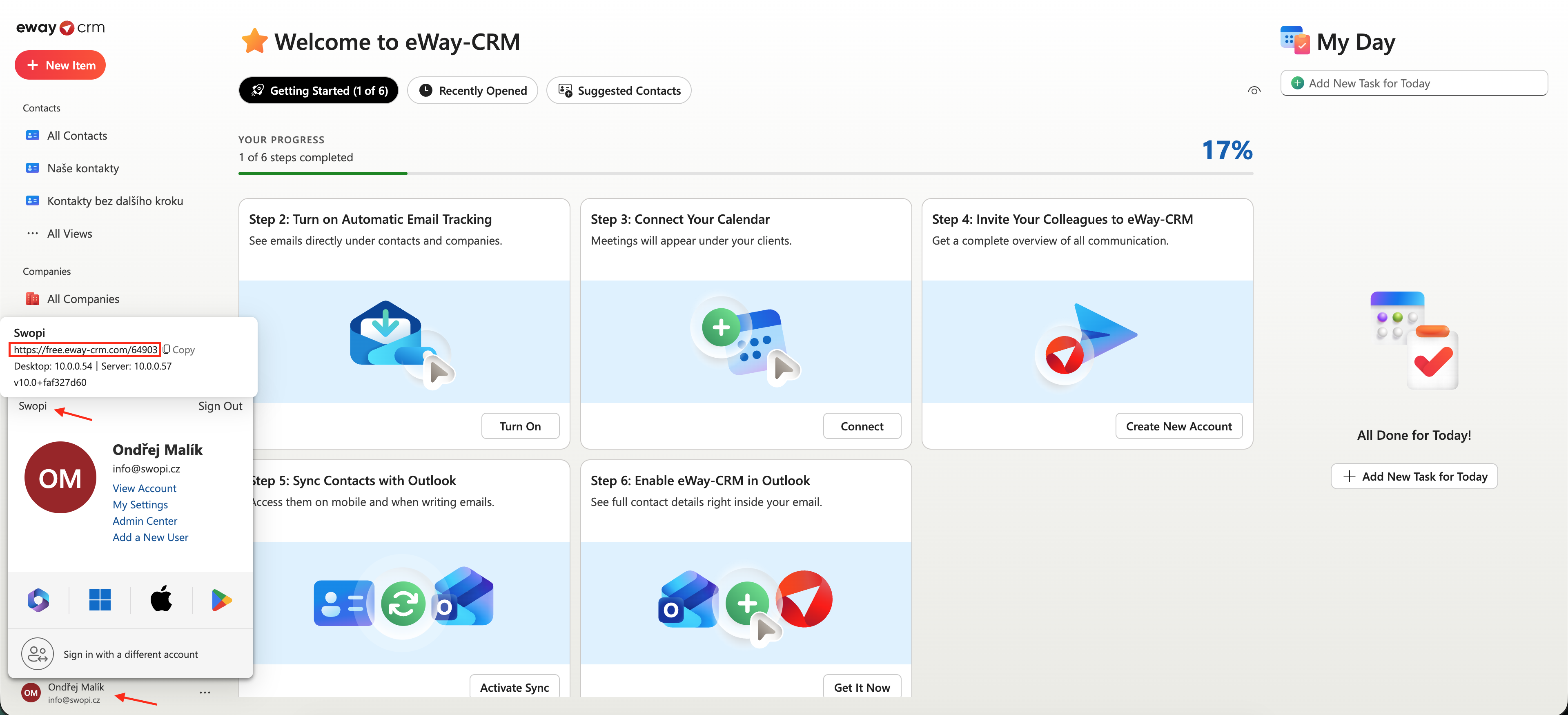
Click your name in the bottom-left → the Web Service address is at the top of the account panel (next to the Copy button). Copy it and paste it into Swopi.
#Step 2: Connecting in Swopi
Dashboard → Integrations → eWay-CRM:
- Enter the Web Service address, username, and password.
- Test connection (a green "Connected").
- Automatic sync enabled = every new contact goes to eWay-CRM immediately.
- Activate and save → Send test lead and check eWay-CRM.
The password is stored only as a secure hash (MD5) on the server, it is never returned to the browser.
#Field mapping
Every Swopi field goes into the right eWay-CRM field (not the note).
Contact:
| Swopi field | eWay-CRM contact |
|---|---|
| Name | FirstName / LastName |
Email1Address |
|
| Phone | TelephoneNumber1 |
| Job title | Title |
| Website | WebPage |
| City | BusinessAddressCity |
| Country | BusinessAddressCountry |
| Company | Company + linked Company record |
Company (linked record): Swopi AI firmographics:
When Swopi AI finds company data, Swopi finds or creates the company in eWay and links the contact to it. Firmographics go into the company's native fields:
| Swopi field | eWay-CRM company |
|---|---|
| Company website | WebPage |
| Company phone | Phone |
| Company email | Email |
| Industry | LineOfBusiness |
| Employees | EmployeesCount |
| Reg. no. (IČO) | IdentificationNumber |
| VAT (DIČ) | VATNumber |
| Company address | Address2Street / Address2City / Address2Country |
LinkedIn, Seniority, Intent and the rest go into eWay Custom fields (create them once; Swopi fills them by name). See Field mapping to customize.
#How it works
- A new lead from a business card / a manually added contact → Swopi signs in to
the eWay Web Service and saves the contact via
SaveContact. - Optionally, "Source: Swopi (digital business card)" is appended to the note.
- Manual export: Contacts → select → Sync to CRM → Send selected to eWay-CRM.
What syncs automatically (and what doesn't). Auto-sync is event-driven, not a timer, it runs as soon as a lead is created (within a few seconds); it does not run on an interval. Older contacts from before you enabled it are not transferred automatically → send them once manually via Sync to CRM → Send all; from then on, new ones go through on their own. Leads added manually in the dashboard are sent immediately. Leads from a web business card run through a server function, and automatic push runs for them only with an active connecting "hook" (configured by an administrator / IT on Cloud Functions). Without it, send them manually via Sync to CRM.
#Troubleshooting
| Symptom | Solution |
|---|---|
| "Invalid eWay-CRM login" | Check the Web Service address, username, and password. If you sign in via Azure/Microsoft, create a local API user in eWay. |
| Contact was not saved | Verify that the user has API permission and that the integration is enabled. |
#Disabling the integration
In Integrations → eWay-CRM, turn off Automatic sync or deactivate the entire integration. New contacts will stop being sent; the data in eWay-CRM remains. A full disconnection = remove the stored user / password in the integration settings.
Integration contact: support@swopi.co