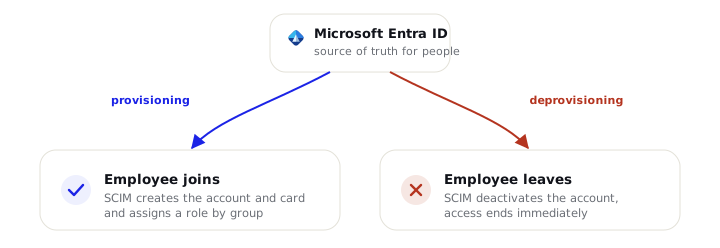
Swopi supports automated provisioning and deprovisioning of users via the SCIM 2.0 standard (RFC 7643 / 7644). Microsoft Entra ID itself, without any intervention from a Swopi administrator, creates new members, propagates attribute changes and deactivates departing employees.
SCIM is a push standard: Entra ID calls the Swopi endpoint and writes changes. It is complemented by pull synchronization, where Swopi instead reads from Microsoft Graph.
#Overview
| Protocol | SCIM 2.0 (push from Entra ID to the Swopi endpoint) |
| Tenant URL | https://dash.swopi.co/api/scim/v2 (the exact value is shown in the dashboard) |
| Authorization | Organization bearer token (rotatable; only a fingerprint is stored) |
| Supported resources | Users (Create / Read / Update / Patch / Deactivate) |
| Interval | Controlled by Entra ID (typically ~40 minutes) |
| Availability | Teams plan; generated by the organization administrator |
#Prerequisites
- the Swopi Teams plan with the Admin role (only an admin can generate the token),
- an Enterprise application in your Entra ID with Provisioning enabled,
- permission to assign users/groups to provisioning.
#Step 1: Generate the token in Swopi (customer administrator)
Dashboard → Integrations → SCIM → Generate token:
-
Swopi creates a Tenant URL and a Secret token.
-
The token is shown only once, copy it immediately.
📸 Screenshot: the generated SCIM token and Tenant URL in the dashboard.
images/swopi-scim-token.png
Tenant URL
https://dash.swopi.co/api/scim/v2
Secret token, shown only once (format swopi_scim_…); copy it from the
dashboard immediately.
#Step 2: Configuration in Entra ID (provided by the customer)
Azure Portal → Microsoft Entra ID → Enterprise applications → the Swopi application → Provisioning:
-
Provisioning Mode
Automatic -
Admin Credentials, fill in these two fields and click Test Connection:
Tenant URL
https://dash.swopi.co/api/scim/v2Secret Token, paste the token generated in Swopi (Step 1).
-
Users and groups → assign the groups designated for provisioning.
-
Provisioning Status
On📸 Screenshot: provisioning configuration in the Enterprise application.
images/entra-scim-provisioning.png
#Attribute mapping
| SCIM attribute | Swopi |
|---|---|
userName |
Login email (identity) |
displayName / name.formatted |
Name (also propagated to the business card) |
title |
Position |
phoneNumbers[work] |
Phone |
externalId |
Internal link to the object in Entra ID |
active |
Member activation / deactivation |
#Supported operations and their behavior
- Create (POST), an account is created in Swopi and assigned to your organization, and a digital business card is created for it right away (pre-filled with the name; the QR code is generated automatically). The operation is idempotent, a repeated create simply updates the existing account.
- Update / Patch (PUT / PATCH), an attribute change (a promotion, a new phone number, etc.) is propagated to Swopi; the name is also reflected on the business card.
- Deactivate (
active=false/ DELETE) = deprovisioning, performs three things at once:- blocks sign-in (the Auth account is set to
disabled), - deactivates the member's business cards (they are no longer public),
- frees up the paid seat (the seat count decreases, a deactivated member is no longer billed).
- blocks sign-in (the Auth account is set to
- Reactivation (
active=true), re-enables everything above (unlocks login, restores the business cards, and reoccupies the seat).
Data is never permanently deleted. Deactivation merely locks the account; reactivating the member in Entra ID fully restores them, including their history.
#Roles after provisioning
SCIM controls the account lifecycle, not the role:
- A new account created via SCIM receives the default Member role.
- SCIM never promotes or demotes a role. Admin / Manager / Support are assigned exclusively during SSO sign-in based on the App Role / group: SSO login is the single source of truth for the role. Whoever is an Admin via SSO remains an Admin even after the next SCIM update.
For details, see the Role mapping guide.
Licensing and Support. An account provisioned via SCIM is, by default, a member with a business card (a paid seat). People who only administer Swopi and do not use a business card (service desk) belong to the Support role, admin rights, no business card, outside the paid seats. Assign the Support role via the App Role
Swopi.Support/ the Support group (applied at SSO login). See Licensing and seats.
#Token security
- In Swopi, the token is stored only as a SHA-256 fingerprint (hash), the administrator sees the plaintext only once, at generation time.
- The token can be rotated at any time (generating a new one immediately invalidates the old one) or provisioning can be turned off entirely.
- The endpoint accepts only requests bearing a valid token for your organization; accounts belonging to another organization cannot be modified through this channel.
#Troubleshooting
| Symptom | Cause and resolution |
|---|---|
| Test Connection in Entra fails | Wrong Tenant URL or token. Check https://dash.swopi.co/api/scim/v2 and generate the token again (it is shown only once). |
| 401 / "unauthorized" during provisioning | The token was rotated or provisioning was turned off. Generate a new token and enter it in Admin Credentials. |
| 409 "User belongs to another organization" | The email already exists in another Swopi organization. Consolidate the identity or use a different address. |
| A deactivated member still occupies a paid seat | Deactivation via active=false frees the seat. Verify that Entra actually sent active=false (not just a removal from the group without deprovisioning). |
| Changes propagate slowly | The interval is controlled by Entra (typically ~40 min). For an immediate run, use "Provision on demand" in Entra. |
Integration contact: support@swopi.co